The information provided by FLwatch and its extensions must not be used for treatment or insulin-dosing decisions. Always rely on your glucose monitoring system and consult a healthcare professional when making medical decisions.
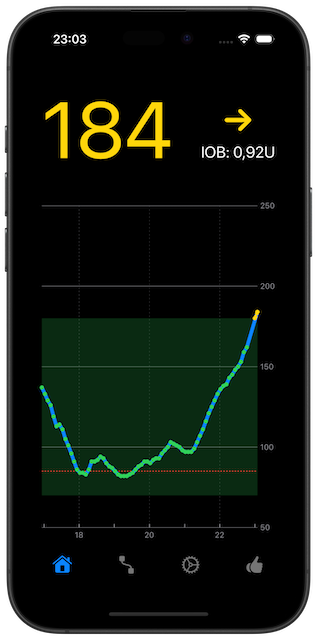
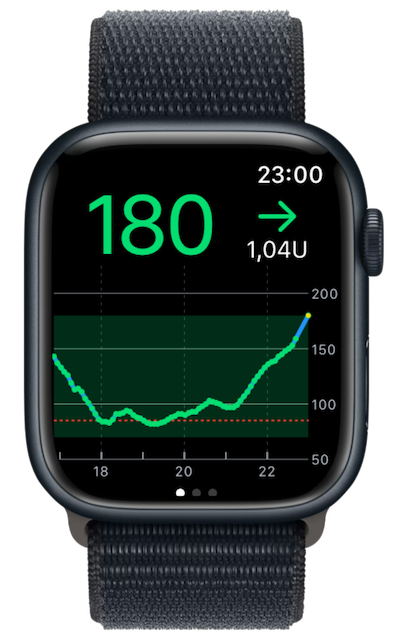
FLwatch displays glucose readings from Abbott FreeStyle Libre 2, Libre 2+, Libre 3, and Libre 3+ sensors, as well as Dexcom G6, G7, and ONE+ sensors, on your iPhone and Apple Watch.
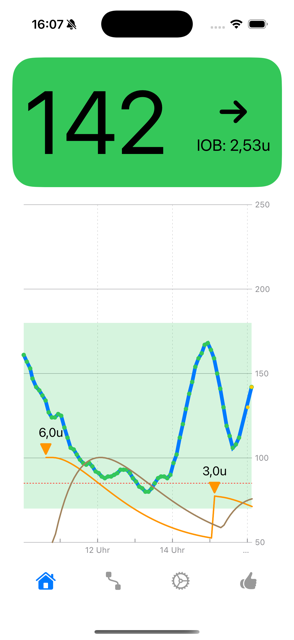
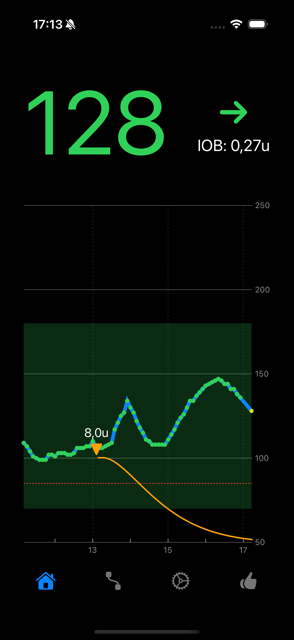
It also lets you record insulin doses and visualizes insulin on board and insulin activity with dedicated graphs, helping you better understand how insulin and glucose levels interact.
FLwatch began as a personal project to support my own diabetes management. I made it publicly available, free and open source, in the hope that it can be useful to others too.
At a Glance
- Glucose, insulin-on-board, and insulin-activity graphs on iPhone and Apple Watch
- Direct Bluetooth, LibreLinkUp, and Dexcom Share connection options
- Workout mode for all supported CGM providers, with direct-to-watch Bluetooth readings from Libre 3 and Libre 3+ during workouts
- Configurable glucose and sensor alerts
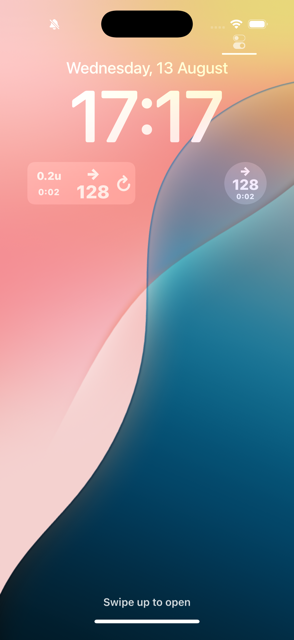
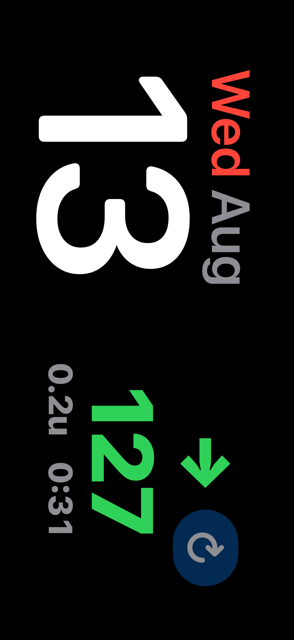
- Home Screen, Lock Screen, StandBy, and Apple Watch widgets and complications
- Live Activities, CarPlay, Siri, and Shortcuts support
- Apple Health export, plus Nightscout export with a direct FreeStyle Libre 3 or FreeStyle Libre 3+ connection
- Requires iOS 18 and watchOS 10.5
Supported Sensors and Connections
| Manufacturer | Sensors | Connection |
|---|---|---|
| Abbott | FreeStyle Libre 2 and FreeStyle Libre 2+ | LibreLinkUp |
| Abbott | FreeStyle Libre 3 and FreeStyle Libre 3+ | Direct Bluetooth to iPhone; direct Bluetooth to Apple Watch during FLwatch workouts; or LibreLinkUp |
| Dexcom | G6, G7, and ONE+ | Dexcom Share |
Features
Glucose Monitoring
- Blood glucose graph on iPhone and Apple Watch
- Interactive chart on iPhone — tap to inspect individual readings
- Optional calibration offset for directly connected FreeStyle Libre 3 and FreeStyle Libre 3+ sensors
- Check your current glucose and trend using Siri or Shortcuts
- Optional always-on display mode for quick viewing
Alerts
- Configurable low- and high-glucose alerts on iPhone, Apple Watch, and CarPlay
- Additional critical-low and signal-loss alerts for directly connected FreeStyle Libre 3 and FreeStyle Libre 3+ sensors
- Sensor warm-up status, remaining life, expiry, and replacement notifications for directly connected FreeStyle Libre 3 and FreeStyle Libre 3+ sensors
- Optional Critical Alerts and separate Do Not Disturb times for each alert type
Configure regular alerts on the iPhone’s Notifications tab (bell icon).
FLwatch alerts are provided on a best-effort basis and are not guaranteed. They may be delayed or missed. Always confirm your glucose reading before taking action.
Insulin Tracking
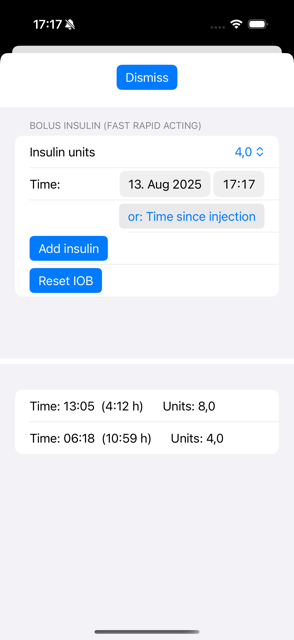
- Record insulin doses on iPhone or with Siri and Shortcuts on iPhone and Apple Watch
- Basic carbohydrate and insulin calculator using portion size and a configurable insulin-to-carbohydrate ratio
- Insulin on Board (IOB) calculation and graph
- Insulin activity graph
- Support for rapid-acting and fast rapid-acting bolus insulins
Widgets, Live Activities, and CarPlay
- Home Screen widgets, with and without graphs
- Lock Screen and StandBy widgets
- Live Activities for quick glucose updates
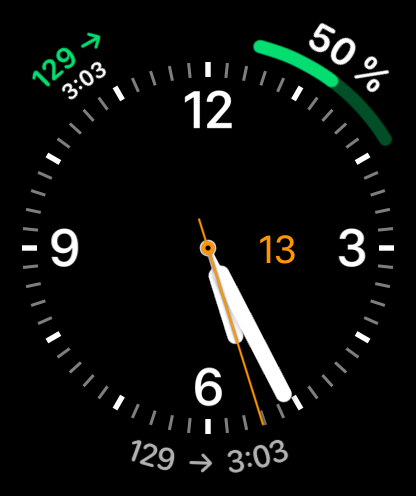
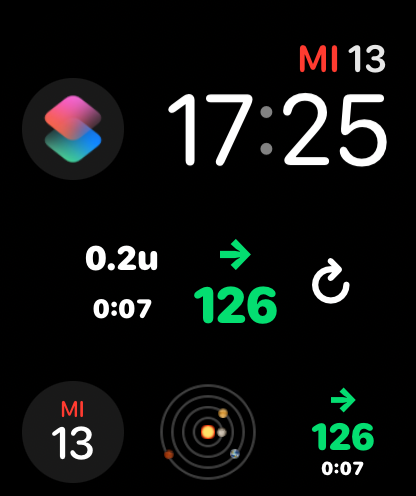
- Native Apple Watch app with a wide range of widgets and watch face complications
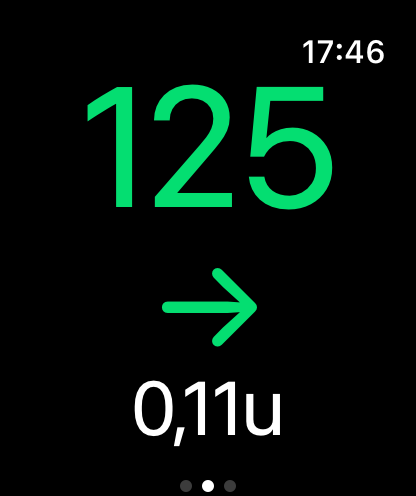
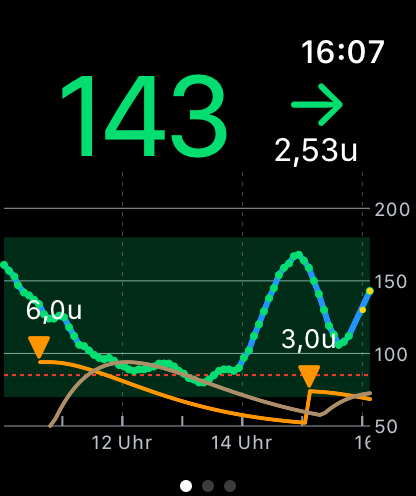
- Glucose graph directly on Apple Watch
- Live Activity mirroring to the Smart Stack on watchOS 11 or later
- CarPlay view showing current glucose and IOB
- Glucose graphs in CarPlay through widgets and Live Activities
Apple Watch Workouts
- Workout mode for all supported CGM providers, with a glucose graph and configurable workout low-glucose alert
- Additional critically-low, rapid-drop, and missing-reading alerts, with a 15-minute snooze for glucose notifications
- Direct Bluetooth readings from FreeStyle Libre 3 and FreeStyle Libre 3+ while a workout is running in FLwatch
- Workout view showing glucose, trend, heart rate, elapsed time, and insulin on board when available
- Distance for supported outdoor activities
LibreLinkUp and Dexcom Share workouts require internet access on the watch and continued glucose uploads from the sensor wearer’s phone.
Data Sharing
- Export glucose readings and recorded insulin doses to Apple Health
- With a direct FreeStyle Libre 3 or FreeStyle Libre 3+ Bluetooth connection, export glucose readings and recorded insulin doses to your own Nightscout server
Configure these exports under Settings > Data Sharing on iPhone. Apple Health glucose and insulin exports can be enabled independently.
Screenshots
See additional screenshots on the FLwatch App Store page.
iPhone Screenshots
Watch Screenshots
Quick Start
-
Install FLwatch from the App Store.
- Make sure the watchOS app is installed on your Apple Watch, ideally before starting the iPhone app.
- On first launch, FLwatch asks you to choose your CGM:
FreeStyle Librethrough LibreLinkUp,Dexcomthrough Dexcom Share, orFreeStyle Libre 3 (Bluetooth)for a direct sensor connection. - After you make a selection, FLwatch automatically opens the matching
Connectscreen. Follow the instructions shown there and the relevant notes below. - Once connected, allow up to one minute for the first glucose data to appear.
You can change the selected CGM later in Settings.
If the watchOS app is installed, cloud-connection settings and credentials entered in the iPhone app are transferred to the Apple Watch app. You can transfer them again later by pressing the Connect button once more.
Direct FreeStyle Libre 3 and FreeStyle Libre 3+ Connection
iPhone Setup
On a fresh installation, choose FreeStyle Libre 3 (Bluetooth) in the CGM picker. FLwatch then opens the Bluetooth connection screen automatically.
For an already activated sensor, Parallel is the recommended mode. It keeps the sensor’s existing Abbott app connection credentials valid, making it easier to switch back to that app later.
In Started with, select the app and version used to activate this sensor, even if you have updated the Abbott app since then:
| Option in FLwatch | Sensor activated with |
|---|---|
FreeStyle Libre 3 |
The FreeStyle Libre 3 app, including FreeStyle Libre 3 – US |
Libre by Abbott |
Libre by Abbott version 1.4.0 or later |
Libre by Abbott V ≤ 1.3.0 |
Libre by Abbott version 1.3.0 or earlier |
For Libre by Abbott version 1.4.0 or later, retrieving the Receiver ID logs you out of the Abbott app. Version 1.4.0 has no logout or login button, so you must delete and reinstall the Abbott app to log back in. The Receiver ID is stable and FLwatch saves it, so you only need to retrieve it once for the same account.
These three options use different receiver IDs, so the selection must match how the sensor was activated. Sign in with the LibreView account used by that app, then tap Get Receiver ID. Use the sensor wearer’s LibreView account, not a LibreLinkUp follower account.
- Only one app should access the sensor at a time. Before using FLwatch, fully close the Abbott app and turn off its Bluetooth access in iOS Settings. Switching between apps can take two to three minutes.
- When FLwatch asks you to scan, hold the top of your iPhone against the sensor and keep it still until NFC pairing finishes.
If pairing fails with error 0xB1, check the Started with selection and LibreView account. Sensors activated with a FreeStyle Libre 3 reader cannot be paired with FLwatch.
The Fresh mode is only for a brand-new, unused sensor. It starts the sensor’s wear period immediately and cannot be undone. Most users should activate the sensor in their Abbott app and then pair it with FLwatch using Parallel mode.
If you choose FLwatch only when activating a fresh sensor, no Abbott app can use that sensor later. Select FLwatch only again if you need to re-pair it; no LibreView account is required for this option.
Once paired, keep your iPhone near the sensor. Glucose readings are received directly over Bluetooth about once a minute, without a follower account or cloud connection. A direct connection also enables calibration offset, critical-low and signal-loss alerts, sensor-status notifications, and Nightscout export.
The optional offset is configured under Settings > Sensor calibration. It applies a local correction only to newly received readings in FLwatch; it does not recalibrate the sensor or change existing history.
These direct-connection features are not available for FreeStyle Libre 2 or FreeStyle Libre 2+ sensors.
Apple Watch During Workouts
With Libre 3 and Libre 3+, FLwatch can receive readings directly on Apple Watch during a workout, so you can leave your iPhone behind. After the initial setup, direct Bluetooth readings do not require internet access or a cellular Apple Watch.
- Pair the sensor on iPhone as described above. Keep the iPhone and watch nearby with FLwatch installed on both. On the iPhone’s
Connectscreen, check thatDirect to Apple WatchshowsReady for direct sensor. - Open FLwatch on Apple Watch and swipe to
Workout. Choose your activity, adjustWorkout low, and reviewWorkout alerts. Allow Bluetooth access and the requested Health permissions. - Tap
Startand keep the watch close to the sensor. Confirm that a fresh glucose reading appears before leaving your iPhone behind.
The direct watch connection runs during workouts started in FLwatch. Starting a workout in Apple’s Workout app does not start this connection.
Battery tip: If you start a workout mainly to keep direct-to-watch readings active, Yoga (Indoor) is usually a good choice for low battery usage. Enabling Low Power Mode under Settings > Battery on Apple Watch can reduce battery usage further.
Wear your watch on the arm closest to the sensor. If the signal has to cross your body, reconnecting can take much longer. Connection drops can still occur and interrupt readings and glucose alerts. If FLwatch shows Sensor reconnect limited, turn Bluetooth off and on in Settings on Apple Watch, then bring the watch close to the sensor. The Sensor connection tips link in FLwatch’s workout screen provides more help.
Tap End Workout in FLwatch when you finish. This saves the workout to Apple Health and lets the iPhone resume the sensor connection when nearby. Take Sensor Back on iPhone moves readings back to the phone but does not end the workout; end it separately on Apple Watch.
Set Up LibreLinkUp
LibreLinkUp can provide glucose readings from FreeStyle Libre 2, FreeStyle Libre 2+, FreeStyle Libre 3, and FreeStyle Libre 3+ sensors. To use it with FLwatch, invite yourself to become your own follower.
LibreView credentials do not work. Use the credentials of a LibreLinkUp follower account.
@TypeOneCallum has created a very helpful step-by-step FLwatch setup video. If you are setting up LibreLinkUp for the first time, this is a good place to start.
- In the FreeStyle LibreLink or FreeStyle Libre 3 app, go to Share / Connected Apps.
- Open Connect / Manage LibreLinkUp.
- Tap
Add Connectionand enter the email address you want to use for the follower account. - Accept the invitation sent to that email address.
- Install the LibreLinkUp app on your iPhone and complete the setup for that invited follower account.
- Confirm that you can see your own blood glucose graph in LibreLinkUp.
- Open FLwatch and enter the follower account credentials on the
Connecttab.
The email address for the follower account can be the same as the one used for LibreView. If the follower account has more than one connection, choose the person whose readings FLwatch should display after signing in.
The LibreLinkUp app can then be closed or uninstalled. You may still need it later to accept updated terms or privacy policies, or to verify that the account and connection still work.
LibreLinkUp’s step-by-step guide provides further help.
FLwatch currently supports the LibreLinkUp 4.x API. LibreLinkUp API 5.0.0 is not yet supported. If API 4.x is disabled in the future, LibreLinkUp glucose data in FLwatch may stop working without notice. IOB-related features and other connection methods will continue to work.
Set Up Dexcom Share
Dexcom G6, Dexcom G7, and Dexcom ONE+ sensors can provide glucose readings through Dexcom Share.
- Turn on Share in the Dexcom app. Dexcom requires at least one follower invitation before Share can be enabled.
- On a fresh installation, choose
Dexcomin the CGM picker. FLwatch automatically opens the Dexcom Share connection screen. - Sign in with the email address and password of the Dexcom account used by the sensor wearer — the same account used in the Dexcom app on the wearer’s phone — and press
Connect. FLwatch detects the account region automatically.
Do not use a follower’s login. Dexcom Share only exposes the wearer’s own readings to third-party apps when the wearer’s account is used.
If the Apple Watch app was not installed when you connected, install it and press Connect again to transfer the credentials. The Dexcom Share connection used by FLwatch is unofficial and may be changed or restricted without notice.
Bluetooth Heartbeat for Cloud Connections
For regular iPhone low- and high-glucose alerts with LibreLinkUp or Dexcom Share, enable the Bluetooth Heartbeat in Settings > Bluetooth Heartbeat and select your nearby sensor transmitter. These iPhone alerts require the heartbeat; continue to use the sensor manufacturer’s alerts as your primary alerts.
During a workout started in FLwatch on Apple Watch, the watch refreshes cloud readings and provides its own workout alerts. These workout alerts do not require the iPhone’s Bluetooth Heartbeat setting, but the watch needs internet access and the sensor wearer’s phone must keep uploading glucose readings.
The direct FreeStyle Libre 3 and FreeStyle Libre 3+ Bluetooth connection does not use this setting.
Insulin Features
To configure insulin calculation or record a dose, tap the IOB label on the home screen.
Currently supported insulin types:
- Rapid-acting insulin, such as Novolog and Novorapid
- Fast rapid-acting insulin, such as Fiasp and Lyumjev
The built-in calculator uses portion size and a configurable insulin-to-carbohydrate ratio. More insulin types can be added on request.
Apple Watch, Siri, and Shortcuts Tips
- To keep the glucose graph visible on Apple Watch for one hour, open Settings on the watch or the
Watchapp on iPhone. Go toGeneral > Return to Clock, choose FLwatch, and selectAfter 1 hour. - Place a widget or complication on your Home Screen, Lock Screen, or watch face for quick access to FLwatch.
- Live Activities on iPhone can be mirrored into the Apple Watch Smart Stack on watchOS 11 or later.
- Siri and Shortcuts can display or read out your current glucose value and record insulin doses.
- For detailed instructions and example phrases, open
Settings > Siri integrationin FLwatch on iPhone. - For hands-free access, create a shortcut that opens FLwatch, give it a phrase such as
glucose graph, and enableShow on Apple Watchif desired.
Technical Notes
FLwatch uses the exponential insulin model from LoopKit. The model uses three parameters: actionDuration, peakActivityTime, and delay.
- For rapid-acting insulin, the parameters are 360, 75, and 10 minutes.
- For fast rapid-acting insulin, the parameters are 360, 55, and 10 minutes.
Project Status
FLwatch is an experimental open-source project. Use it with caution. It comes with no warranty and is used at your own risk.
FLwatch is also available for beta testing on TestFlight.
Support and Feedback
For support, please open a GitHub issue, start a GitHub discussion, or email flwatch [at] cmdline [dot] net.
Feedback is very welcome and can be sent through the same channels.
Donations
Donations are always very welcome.


Credits
Please have a look at these projects as well:
DiaBLE, LoopKit, GlucoseDirect, Nightguard, Nightscout LibreLink Up Uploader
All product names, trademarks, and registered trademarks are the property of their respective owners. Their use here is for identification purposes only and does not imply affiliation with or endorsement by the trademark holders.
FLwatch is not affiliated with or endorsed by Abbott Diabetes Care Inc. or Dexcom, Inc.